How to Enable Monitoring
Monitoring is disabled by default to optimize system performance. Since the observability platform requires dedicated resources to process and store data, Codesphere gives you the flexibility to choose exactly which workloads to monitor. This ensures resources are only used where they are needed and prevents the platform from being flooded with unwanted load.
To access the Log and Request Browsers, an Admin must enable Monitoring at the Resource Group (Team) level, and collection must be toggled on for the individual Landscape.

Info: Only Resource Group (Team) admins can enable the monitoring platform.
Turning on Monitoring for the Resource Group (Team)
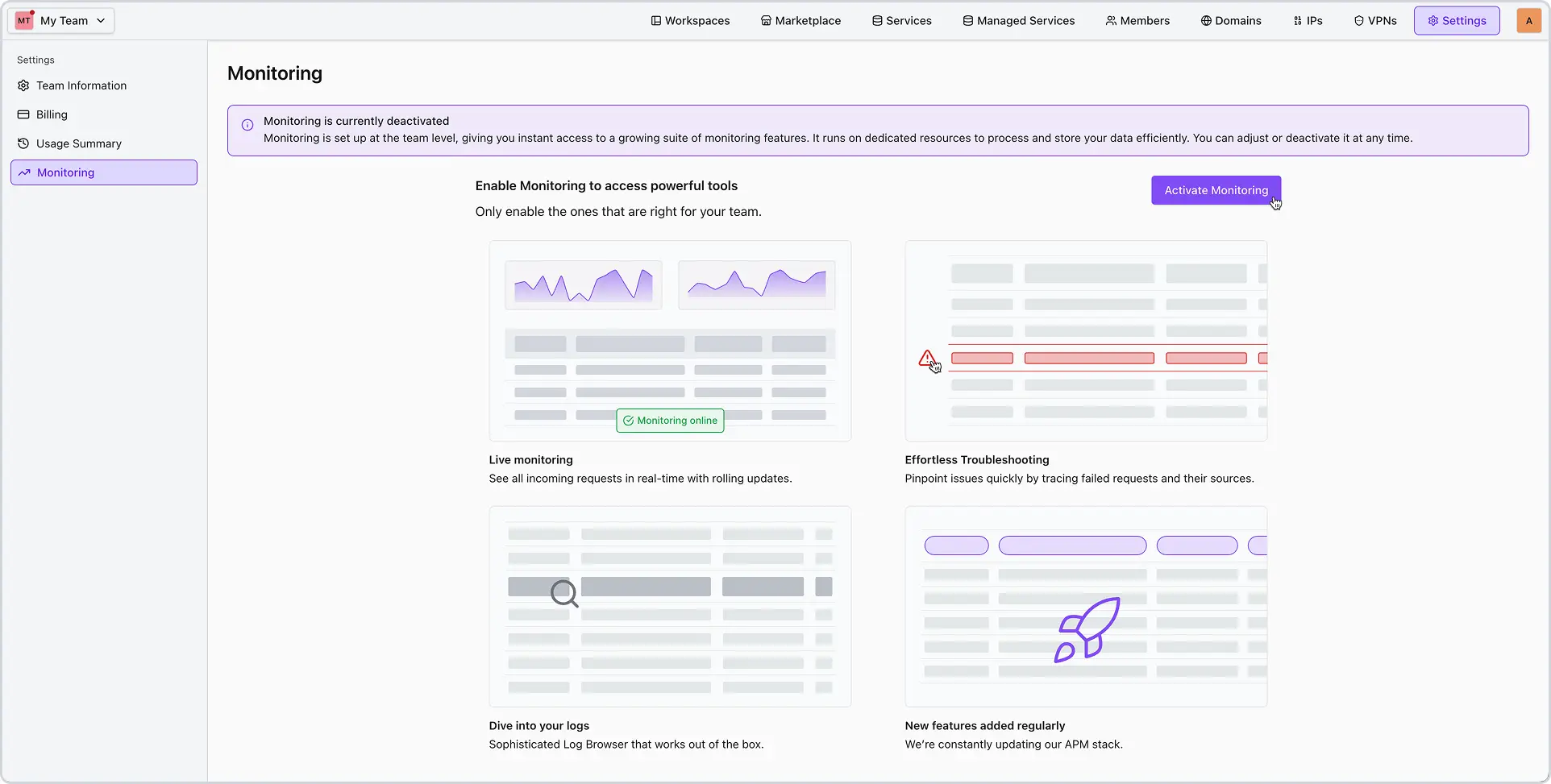
- Navigate to the Settings area, and then to the Monitoring tab.
- Click “Active Monitoring”.
- Choose your desired plan for the Monitoring service and activate it.
Enabling Log & Request (Trace) Collection in the Landscape
Now that monitoring is active for the Resource Group (Team), you must specifically enable collection for each Landscape.
Why is this step necessary? This setting gives you precise control over your data. You can decide exactly which workloads send logs and traces to the observability platform. By activating only the necessary collection, you prevent the system from becoming overloaded with unnecessary data. This ensures that the platform remains fast and your important data is easy to find.

Tip: We recommend enabling both logs and traces to get the most out of the Codesphere Observability Stack.
Steps to Enable:
- Public Cloud Installations
- Private Cloud Installations

Note on Billing: Uses usage-based billing specifically for the monitoring resources consumed.
- Go to Settings > Monitoring. Click Active Monitoring.
- Select your preferred plan and storage settings, then activate it.
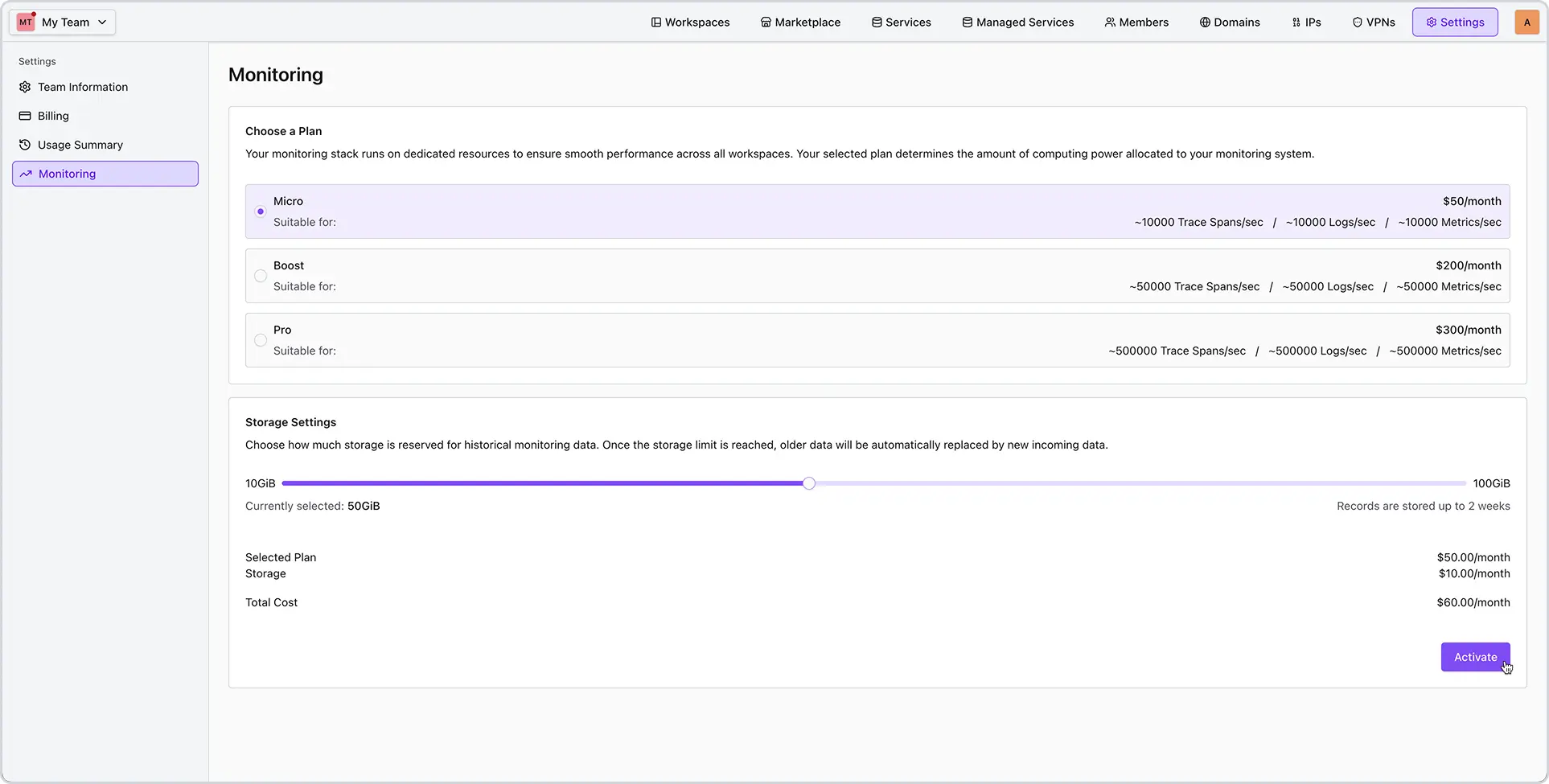
Note on Billing: Monitoring consumes resources directly from your existing pool of compute and licenses.
- Go to Settings > Monitoring. Click Active Monitoring.
- Select your preferred plan and storage settings, then activate it.
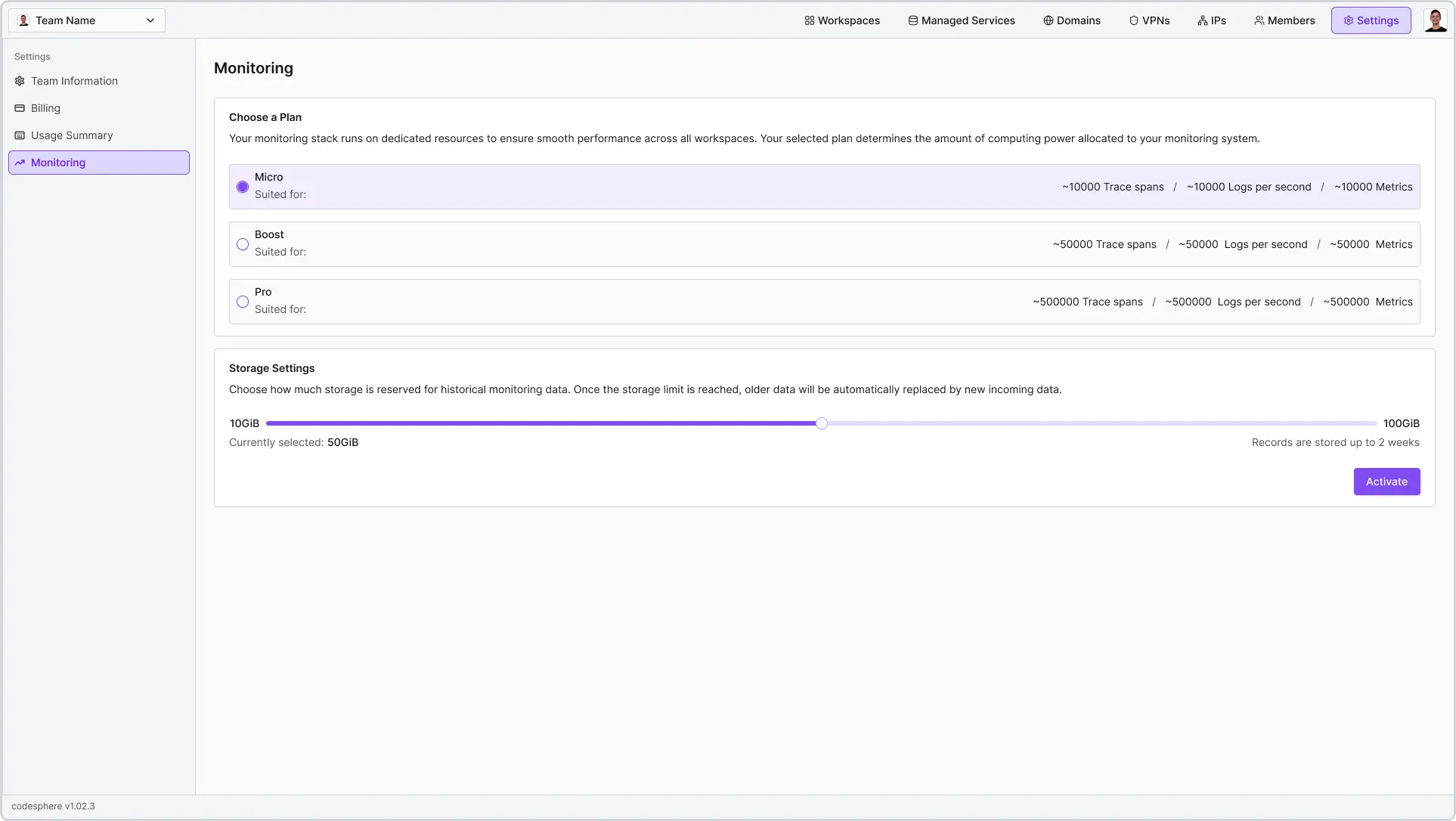
Note: For private cloud installations, additional configuration may be required. Please refer to the Private Cloud Installation Guide or contact your Codesphere administrator.