Integrated VS Code Server
Every Codesphere workspace comes with an integrated VS Code server that provides a full-featured remote development environment directly in your browser. This gives you access to the complete VS Code experience—running on the same file system as your application—without any local setup or remote tunnels.
When to Use VS Code Server
While the Codesphere Cloud IDE is optimized for real-time collaboration, code reviews, and smaller edits with your team, the VS Code server is ideal when you need:
- Full-featured remote development when a local IDE isn't available
- Extensive VS Code extensions and customization options
- Familiar VS Code workflow for larger coding sessions
- Your personal development environment in the cloud
Both tools run in the same workspace and access the same file system, so you can switch between them seamlessly based on your needs.
Architecture
The VS Code server is an open-source server version of VS Code that runs directly in your workspace pod, mounted on the same file system volume as your application.
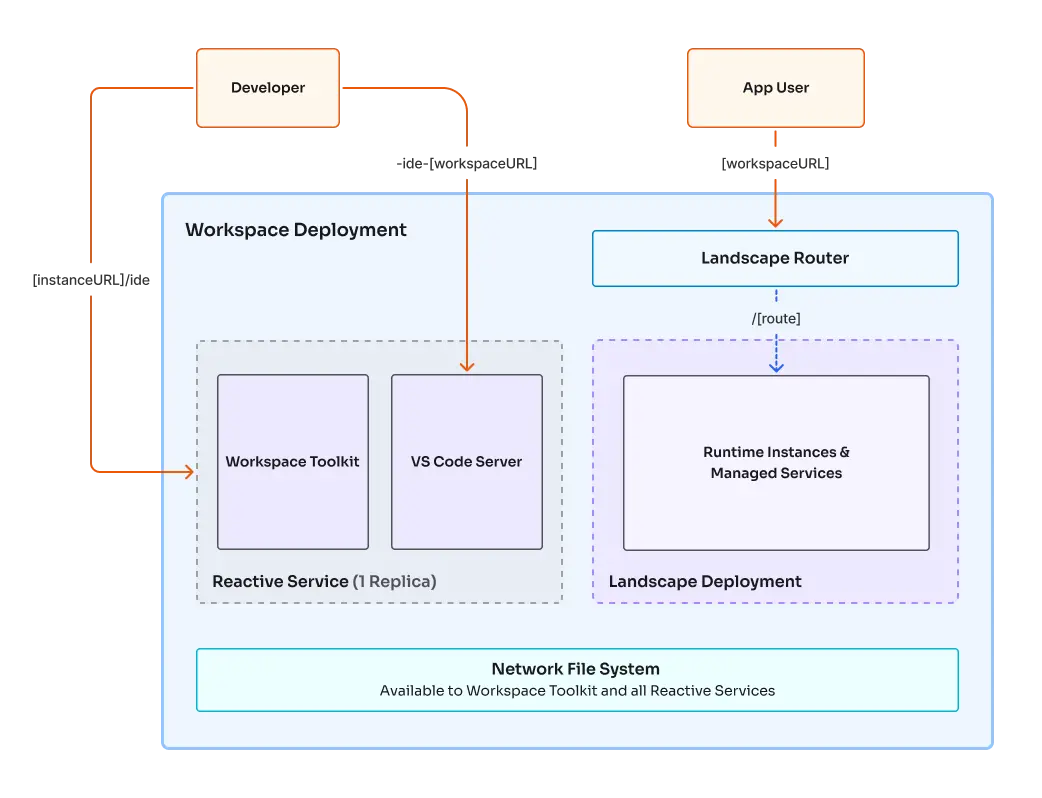
Changes are made and observed directly on the same file system—no remote tunnels, sync delays, or file transfer protocols needed. What you edit in VS Code is immediately available to your running application.
Because the VS Code server runs in the same pod as the Codesphere IDE, it benefits from efficient resource management. The pod is automatically turned off when unused, you control the pod size based on your needs, and no additional infrastructure is required.
The VS Code server is protected by Codesphere's restricted domain feature, ensuring that only authorized team members can access your development environment.
Working with the VS Code Server
Launching VS Code Server
- Navigate to your workspace in the Codesphere platform
- Look for the VS Code server button in the top right corner of the workspace UI
- Click the button to launch the VS Code server
- The server will open in a new browser tab with the full VS Code interface
The server starts instantly and is ready to use—all your workspace files are already mounted and accessible. All your settings and installed extensions are automatically persisted in the .codesphere-internal directory.
Installing Extensions
The integrated VS Code server supports extensions through OpenVSIX, an open-source alternative to the official VS Code Marketplace. Once launched, you can browse and install extensions directly from the VS Code server interface, just as you would in a local VS Code installation.
GitHub Copilot Integration
Microsoft (as of now) does not publish their official extensions (even the open source ones like copilot) on the open Marketplace. You can however add full GitHub Copilot support to your VS Code server by installing the extension manually as long as you have a valid subcription. You can either build the extension from source yourself or download it directly.
Requirements:
- Latest Codesphere base image (Ubunutu 24 slim / LTS Q1 2026 or later)
- GitHub Copilot subscription
Installation Steps:
- Inside the workspace, download the GitHub Copilot
.vsixfile directly from Microsoft:
wget -O github-copilot-chat.vsix
"https://github.gallery.vsassets.io/_apis/public/gallery/publisher/GitHub/extension/copilot-chat/0.37.0/assetbyname/Microsoft.VisualStudio.Services.VSIXPackage"
2. In the VS Code server, go to Extensions
3. Click the "..." menu and select "Install from VSIX..."
4. Reference the downloaded `vspackage.vsix` file to install the extension
5. Authenticate with your GitHub account when prompted

Once authenticated, GitHub Copilot will work exactly as it does in a local VS Code installation.