Using the Cloud IDE
The Cloud IDE is the centerpiece of the Code & Collaborate mode. It provides a fully functional development environment directly in your browser, eliminating the need for local setup.
It runs in a dedicated workspace pod which is connected to your deployed landscape's Network File System (NFS). This architecture allows the IDE to interact directly with your live files, ensuring code changes are reflected instantly while keeping workspace tools separate from your application runtime.
Real-Time Collaboration
All IDE features follow a collaboration-first approach. Any change you or another team member makes in a workspace, whether editing code or running a terminal command, is instantly reflected in the UI for all other users. This allows you to work on the same codebase simultaneously with your team, seeing changes in real-time.
Core Features
Just like a local IDE (e.g., VS Code), the Cloud IDE is equipped with standard development tools tailored for the cloud.
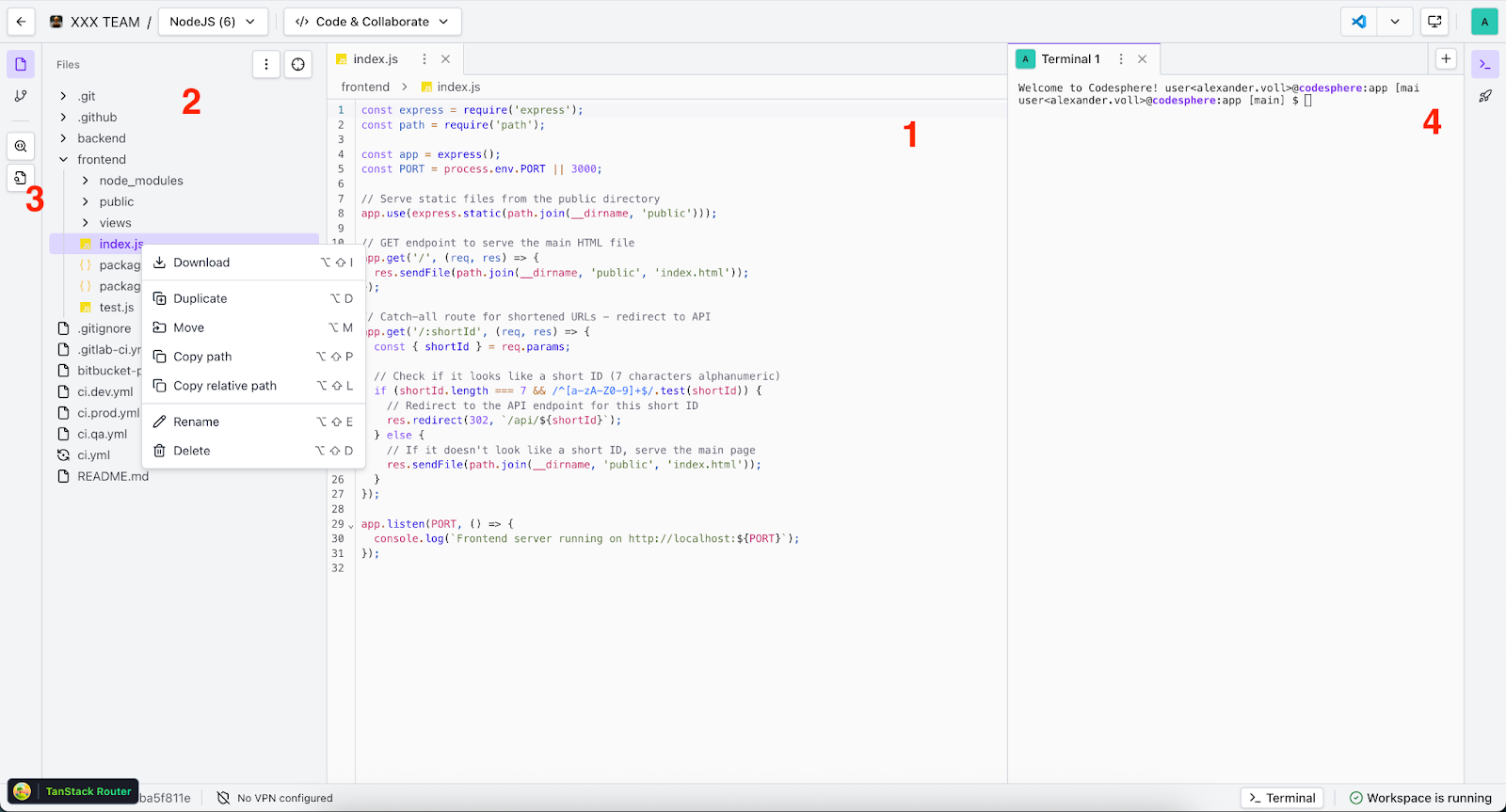
The Collaborative Editor (1)
The collaborative editor comes with all the features you expect from a professional IDE, including a language server, syntax highlighting for most major programming languages, and standard keyboard shortcuts.
As the centerpiece of the IDE, it is designed for seamless teamwork. With multiple people editing, you will see all changes in real-time, similar to Google Docs, making pair programming and code reviews significantly more efficient.
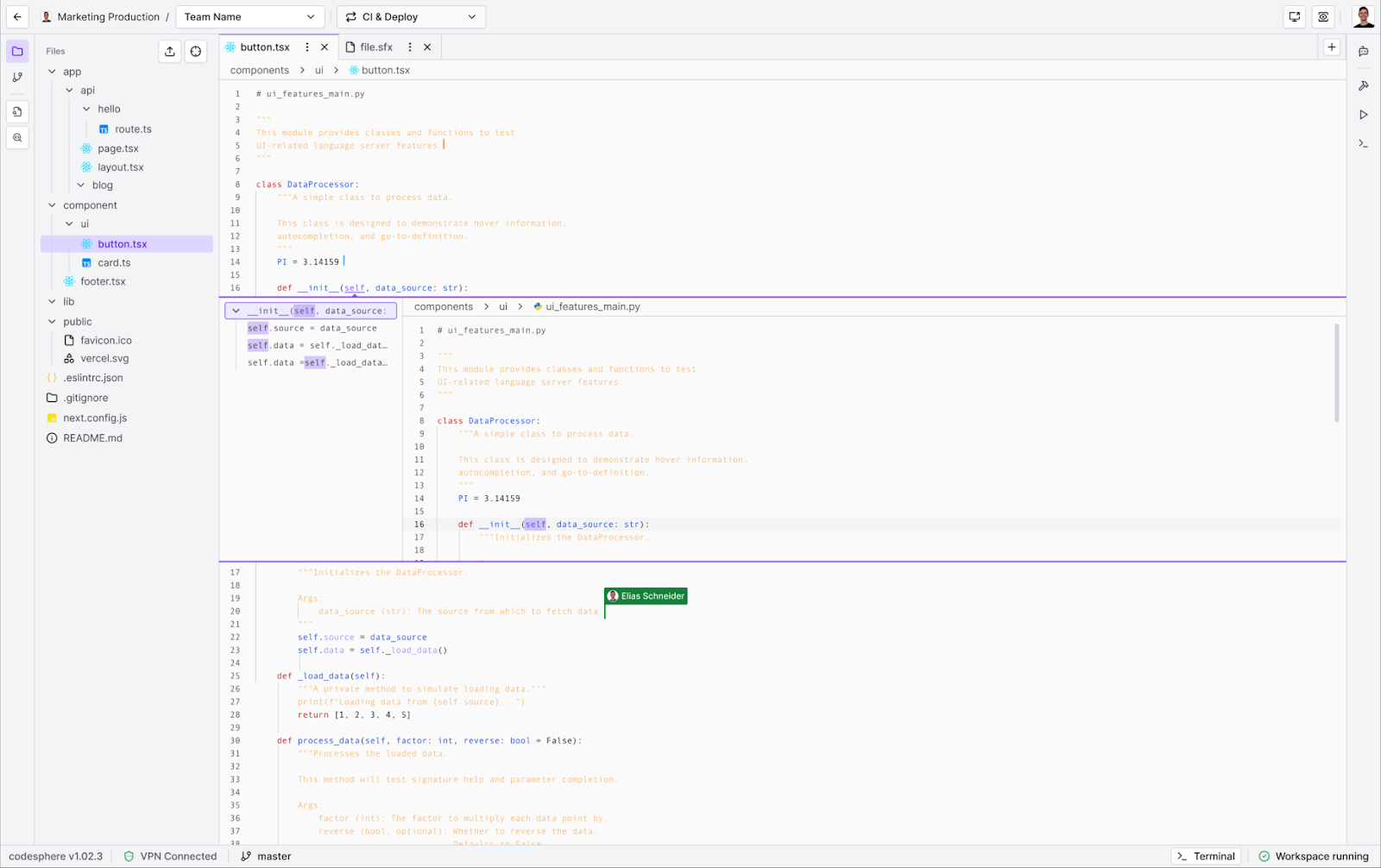
The editor supports splittable tabs for viewing multiple files at once. You can find a list of keyboard shortcuts in the [[user settings]] menu by clicking on your avatar in the top-right corner.
Keyboard Shortcuts
Navigation & Search
| Action | Shortcut |
|---|---|
| Open File Search | Cmd + P |
| Search Everywhere (Global) | Cmd + Shift + F |
| Toggle File Tree | Cmd + Shift + E |
| Select Next / Previous Tab | Opt + Tab / Opt + Shift + Tab |
Code Editing & Formatting
| Action | Shortcut |
|---|---|
| Save Editor Content | Cmd + S |
| Comment / Uncomment Code | Cmd + / |
| Format Code | Cmd + Shift + I |
| Undo / Redo | Cmd + Z / Cmd + Shift + Z |
| Request Auto-completion | Ctrl + Space |
Workspace & Interface
| Action | Shortcut |
|---|---|
| Open / Close Terminal | Opt + T |
| Open Settings | Cmd + Opt + S |
| Toggle Git Commit Area | Cmd + Shift + G |
| Close Editor Tab | Opt + W |
File Management
| Action | Shortcut |
|---|---|
| Create New File | Opt + I |
| Rename File / Folder | Opt + Shift + E |
| Delete File | Opt + Shift + D |
You can find a complete list of the available keyboard shortcuts in the User Settings menu by clicking on your avatar in the top-right corner.
File Tree (2)
Located in the left sidebar, the File Tree gives you a real-time view of your container's file system. It behaves like in any local IDE.
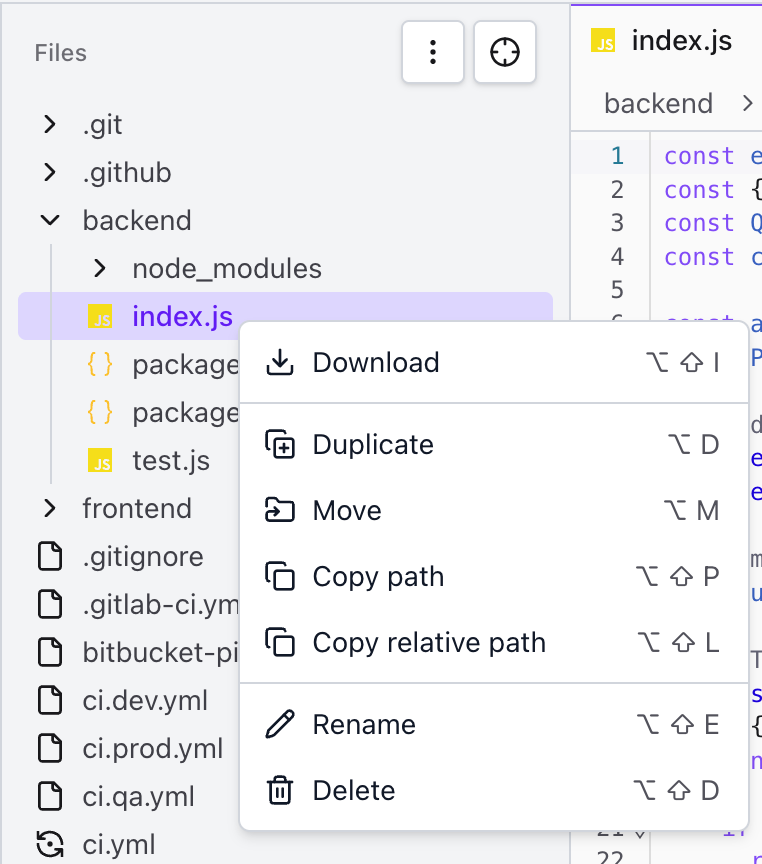
- File Operations: Right-click on files or folders to perform actions such as duplicating, renaming, or deleting them.
- Drag & Drop: Drag files to reorder them or move them to different directories within the tree.
- Download: Right-click on any file to download it directly to your local device.
- Create New Files & Folders: Click the menu button (three dots) in the top-right corner of the file tree to create new files and folders, or to upload existing ones from your machine.
- Highlight Current File: Clicking the target symbol in the top-right corner will automatically expand the tree to highlight the file currently open in the editor.
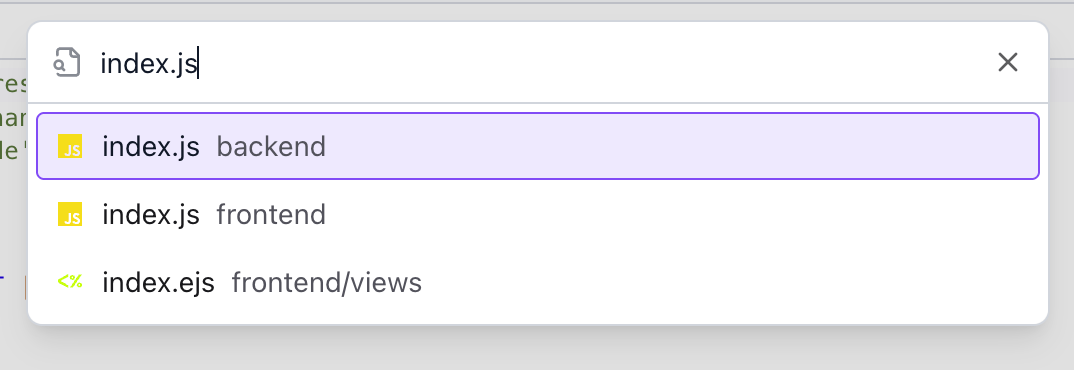
File & Content Search (3)
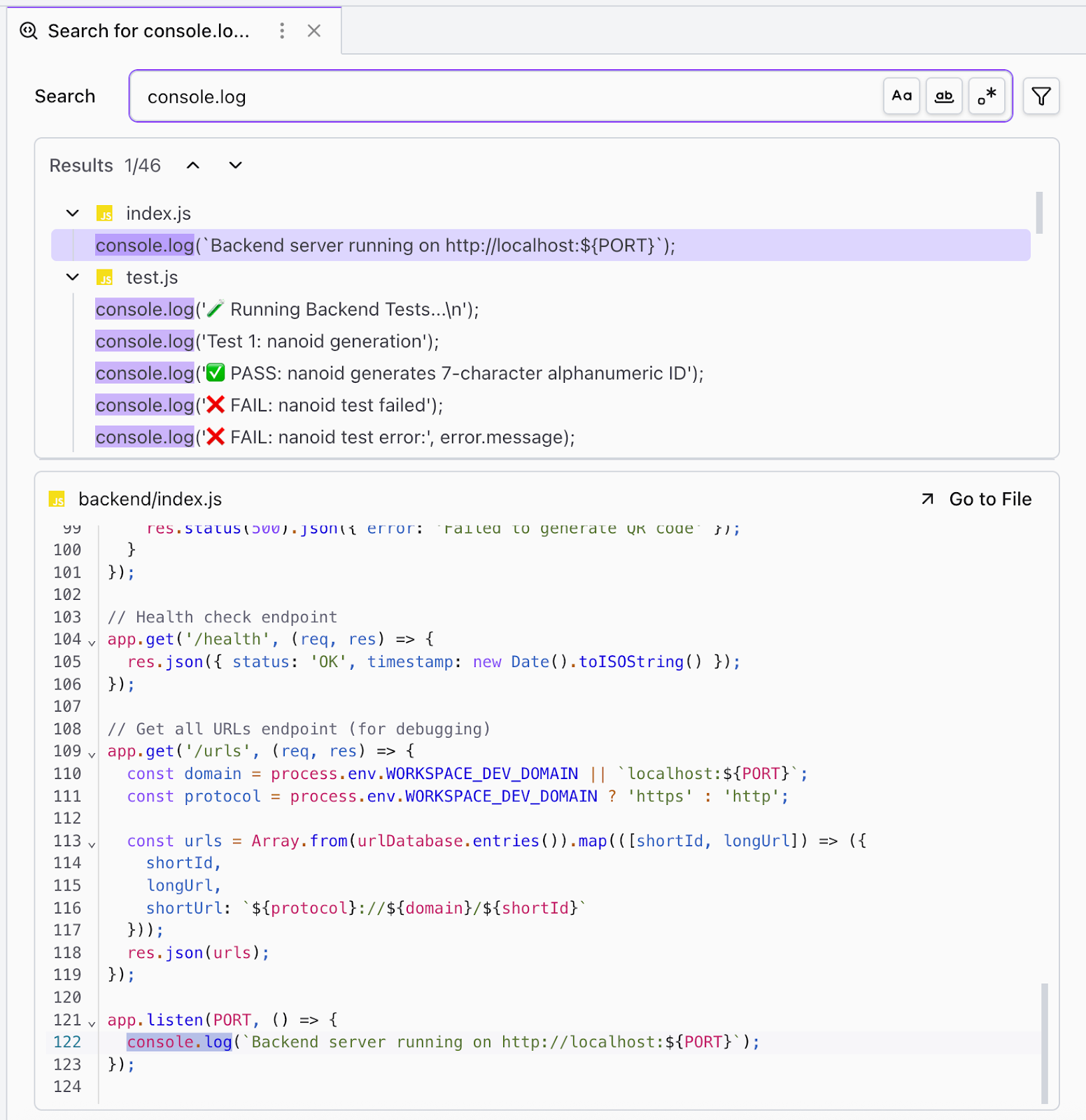
In the left sidebar, directly next to the File Tree tab, you will find tools to search through your repository.
- Search Scope: Use the toggle buttons to search by File Name (to locate specific assets) or by Content (to find code snippets or text strings across the entire project).
- Results: Both search methods produce a consolidated list of matches. Clicking a result instantly opens the file and scrolls to the relevant line.
Terminal (4)
Codesphere provides full shell access via an Ubuntu-based environment. You can toggle it using the terminal icon in the right sidebar or the panel button in the bottom bar.
- Real-Time Collaboration: Terminals are shared sessions. Any terminal you open is visible to team members in the workspace, allowing you to debug together and see commands as they are typed.
- Multiple Instances: You can open multiple terminal tabs to run background processes (like watchers) while executing commands in another.
Limitations
- Rootless Environment: For security reasons, the terminal is rootless, so you cannot use
sudoorapt-get. Instead, use the pre-installed Nix package manager to install system-level dependencies. - Runtime Isolation: The terminal runs in the IDE pod, separate from your application deployment. While you share the file system, you cannot directly access the running processes of your services.
Advanced Workflows
While the core IDE handles collaborative code editing, Codesphere offers specialized workflows for version control and team synchronization. We have dedicated guides for these features:
Git & Source Control
Manage your branches, commit changes, and sync with your remote repository directly from the UI.
Learn more about Git & Source Control.