Managing Environment Variables
Hardcoding sensitive data—such as API keys, database passwords, or tokens—presents a security risk. To mitigate this, Environment Variables decouple the configuration from the codebase. Codesphere manages these variables via encrypted storage, injecting them into the application at runtime.
Accessing the Variables Menu
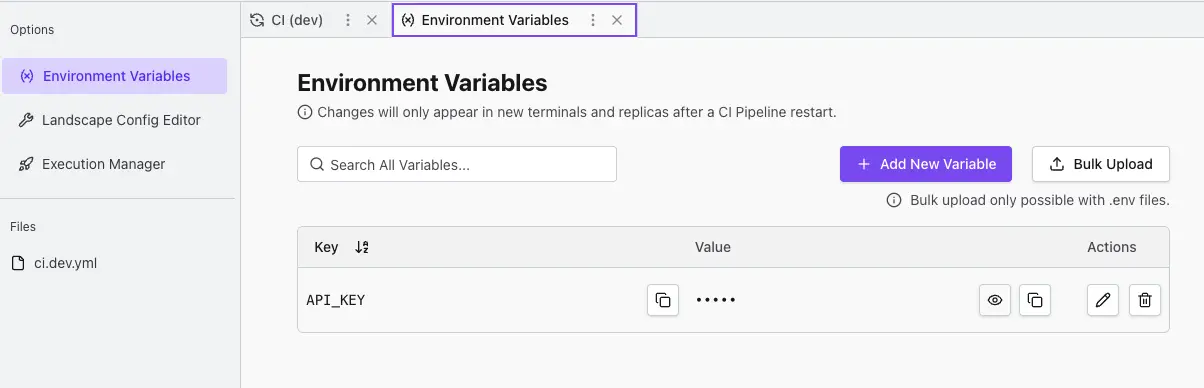
You can manage your secrets in the Environment Variables tab of your Landscape.
- Navigate to the CI & Deploy section.
- Click on Environment Variables in the left-hand menu.
Adding a New Variable
To add a single variable:
- Click the + Add New Variable button.
- Key: Enter the name of your variable
- Value: Enter the secret value.
- Click Save.
Note: For security, once a variable is saved, its value is masked. You can view it again by clicking the eye icon next to the value.
Bulk Uploading (.env files)
If you are migrating an existing project, you likely already have a .env file. Instead of typing them in one by one, you can upload the entire file.
- Click the Bulk Upload button.
- Drag and drop your
.envfile into the modal, or click to browse. - Click Upload.
Example .env file
STRIPE_API_KEY=scr_12345
TWILIO_API_KEY=abcd1234
Important: This will overwrite any existing variables that share the same key.
Using Variables in Your Application
Once defined, these variables are available to your application just like any system-level environment variable.
In Node.js:
const apiKey = process.env.KEYNAME;
In Python:
import os
api_key = os.environ.get('KEYNAME')
In Your CI Pipeline (ci.yml): You can also reference these secrets in your build or run commands using standard shell syntax.
run:
  steps:
    - name: SERVERNAME
      command: ./your-app-server --api-key=$KEYNAME
Secrets
${{ vault['SECRET_KEY'] }}