Git Permissions
Since the full details for this section are still under development, this outline serves as a high-level framework. It focuses on the core concepts of Git authentication and how access levels currently flow from team roles to repository permissions.
Finding Git Settings
- Navigate to your User Settings.
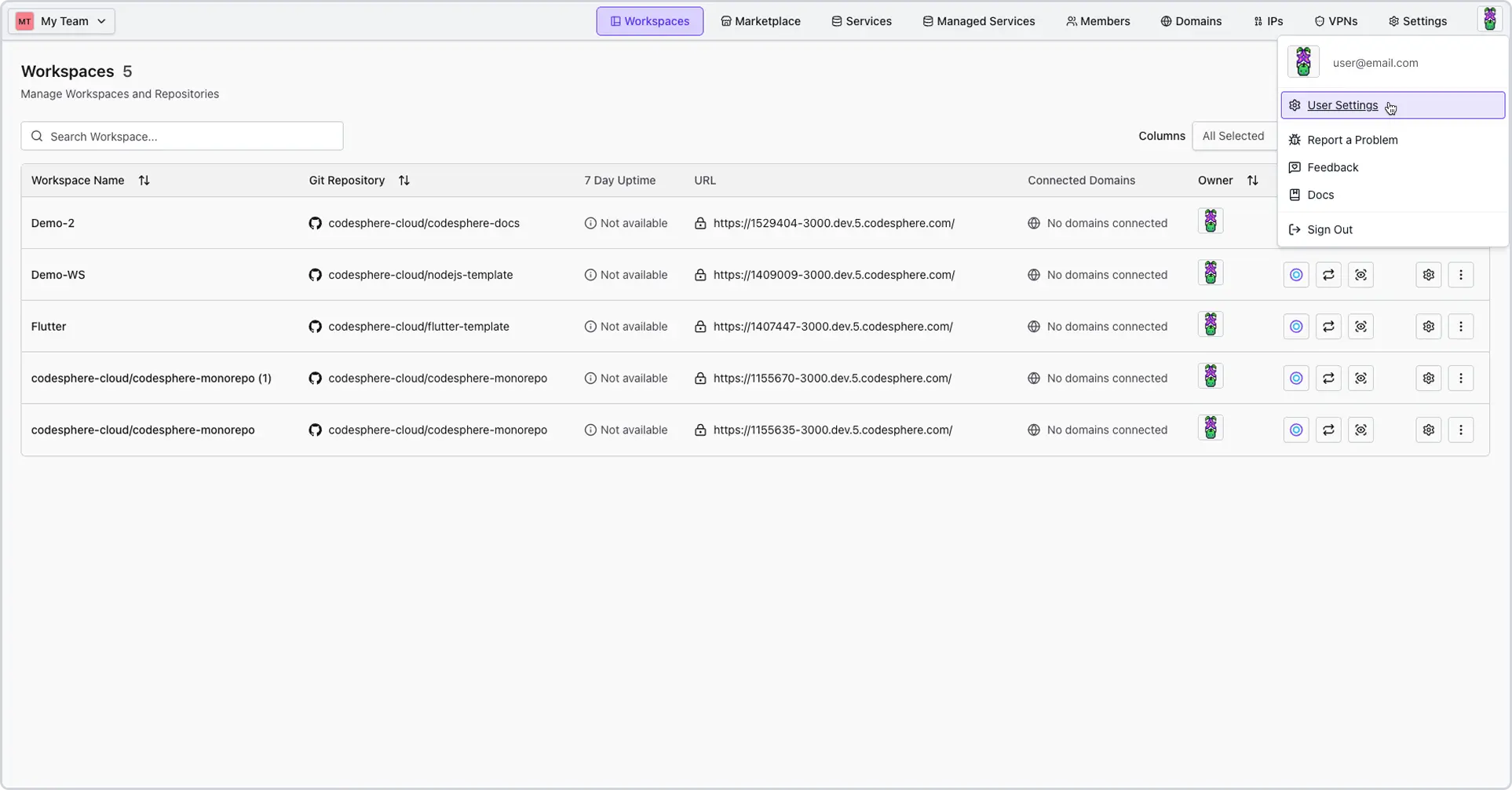
- Select the Git Permissions tab.
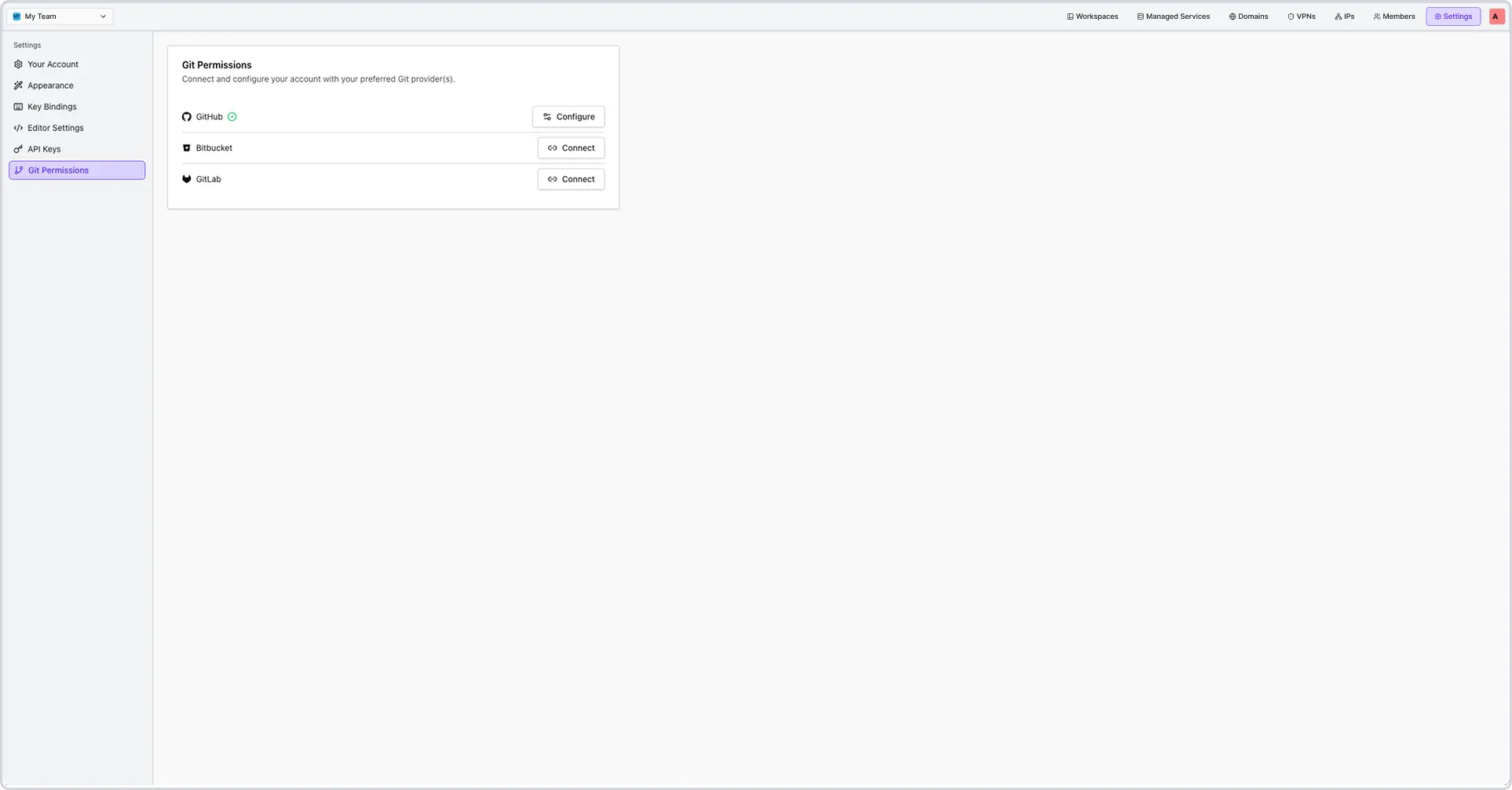
- Here you can view connected to one or multiple Git providers.
Git Providers
Codesphere currently has integrations with GitHub, BitBucket, and GitLab.
GitHub
Working with GitHub in Codesphere
Our integration allows you to create a workspace from a GitHub repository in just a few clicks. To use it you need to grant Codesphere access to your GitHub account. You can grant access to all repositories of an organization or only to specific repositories.
To trigger the access request click on + New workspace and then on Grant access. This will open a GitHub page, sign in if you haven't already, select the organization, and configure which repositories you want to use.
Once this access has been granted you will be able to create and launch new workspaces from your repository in less than 10 seconds.
To pull changes from your repository, open the workspace, click the + icon to open a terminal and type git pull. You can perform any of the usual git commands here as well (i.e. switching remote branches, rolling back etc.). Codesphere will take care of securely managing your access token - it will never store it inside of the workspace but rather attach it ad-hoc to each request that requires it.
Preview Deployments with GitHub Actions
With Preview Deployments you can preview changes you made to your application in a live environment before merging anything to production. Once set up any changes pushed to your repositories' pull requests will automatically be deployed to a Codesphere workspace. Read this doc to find out more.
BitBucket
Working with BitBucket in Codesphere
You can sign up to Codesphere with your Bitbucket account, check out repositories, and automatically create preview deployments for each pull request.
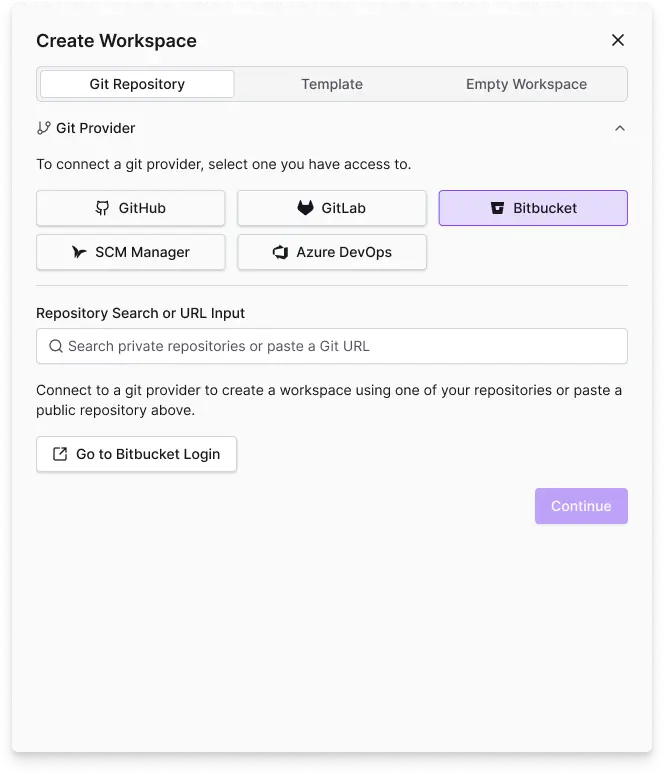
Either sign up directly with your Bitbucket account or connect an existing account - both only take a few clicks. Once connected, you can browse your Bitbucket repositories in the create Workspace dialogue. Cloning a repository, building the code, and getting your application live can take as little as a few seconds (depending on the size of your app). Even larger applications can typically be live in a minute.
Automating Preview Deployments for Bitbucket Pull Requests
See our Bitbucket Preview Deployment doc for a detailed walkthough on how to set up automatic preview deployments for your Bitbucket pull requests. If you are already familiar with the Bitbucket CI, you can find the pipeline code for you to adapt here: https://bitbucket.org/codespherecloud/deploy/src/main/
Frequently Asked Questions
-
Why am I getting a "Permission Denied" error when pushing?
Ensure your user in Codesphere linked to git actually has sufficient access rights in the corresponding git provider. -
Can I use multiple Git providers?
Yes. You can manage connections to different providers simultaneously within your account settings.