Edit Settings & Keybindings
This guide will help you customize your coding environment in Codesphere to match your personal workflow.
Navigating to Editor Settings
To get started, you first need to know where your Editor Settings live.
- Log in to your account.
- Locate your Profile Icon in the top right-hand corner of the screen.
- Select User Settings from the dropdown menu.
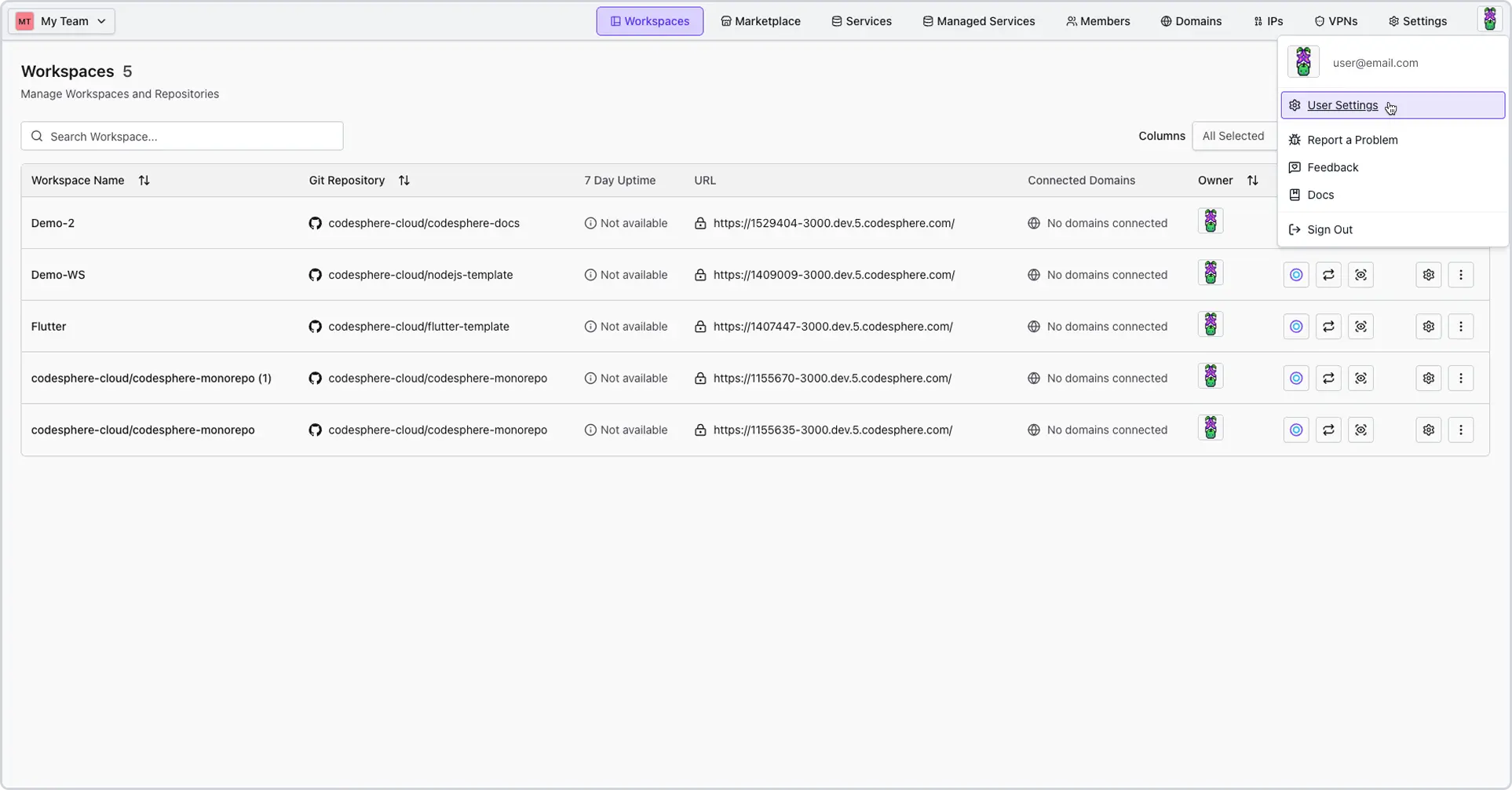
- Click the Editor Settings tab on the left-hand sidebar.
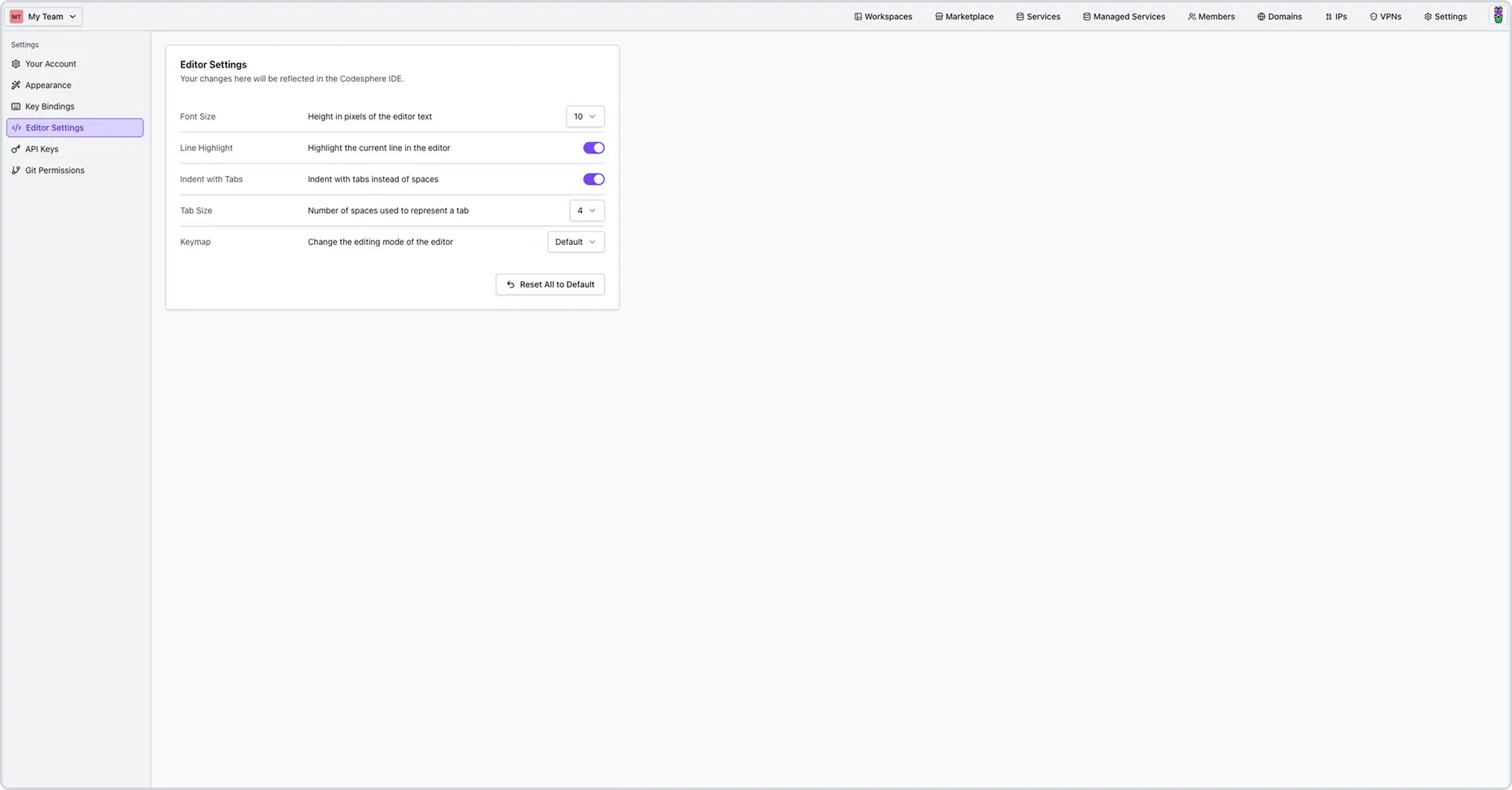
Editor Preferences
Fine-tune the behavior and appearance of your text editor.
| Setting | Description |
|---|---|
| Font Size | Adjust the height of the editor text in pixels (e.g., 14px). |
| Line Highlight | Toggle this on/off to highlight the background of the line where your cursor is currently active. |
| Indent with Tabs | Toggle on to use physical tab characters; toggle off to use spaces. |
| Tab Size | Set the number of spaces that represent a single tab (standard is usually 2 or 4). |
| Keymap | Change the core editing mode. Choose between Default, Vim, or Emacs. |
Resetting to Defaults
If you’ve experimented with too many settings and want a fresh start, you can revert everything at once.
- Scroll to the very bottom of the Editor Settings pane.
- Click the Reset All to Default button.
Customizing Keybindings
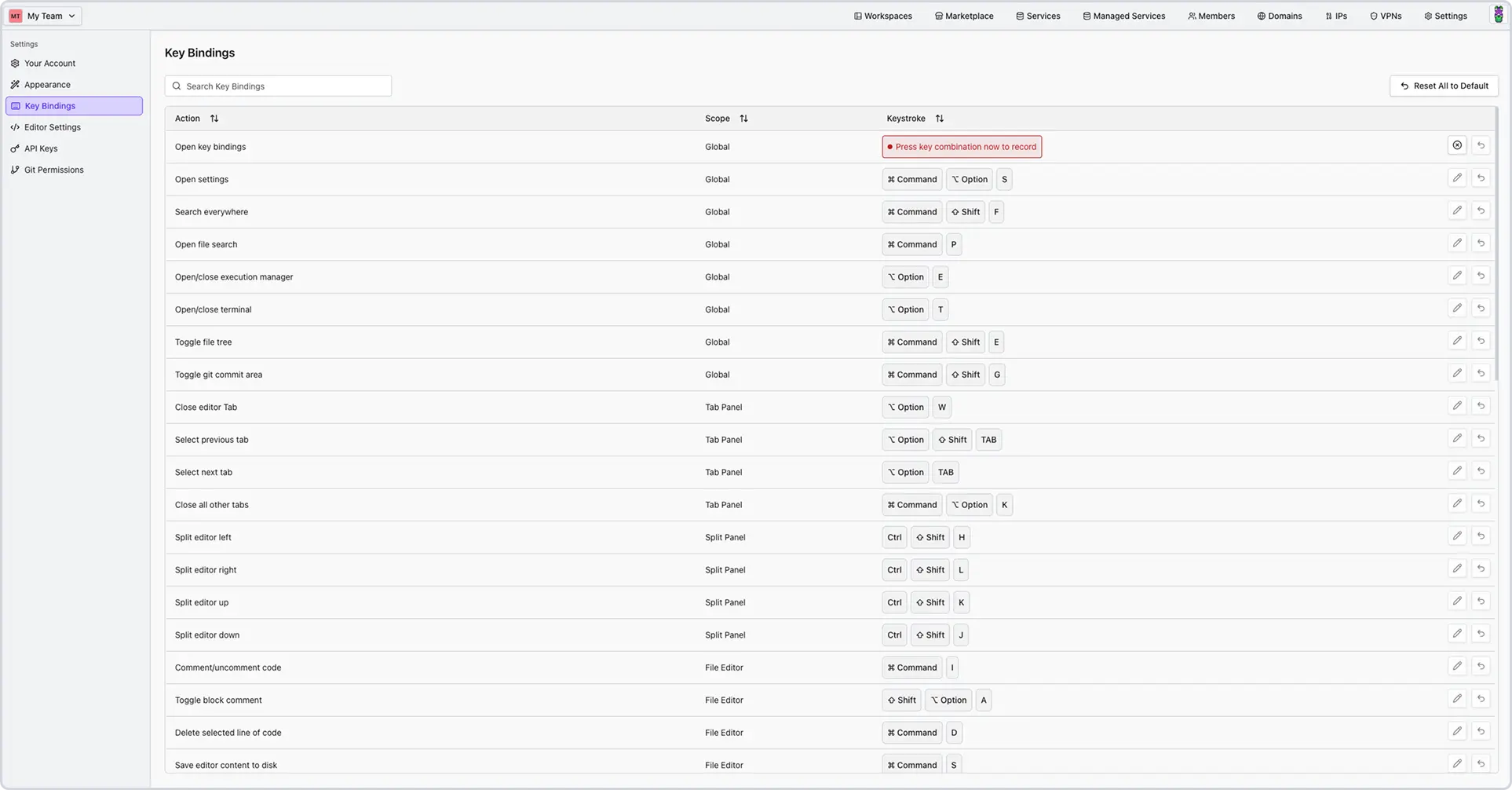
Keybindings allow you to trigger IDE actions with keyboard shortcuts.
- Within your User Settings, click the Keybindings tab.
- Use the Search bar to find a specific command (e.g., "Save" or "Find").
- Click the button to record a new key combination.
Frequently Asked Questions
-
Does the font size affect my teammates' view?
No. What you specify in your user settings only changes your personal view of the code editor. -
Can I have different settings for different projects?
Currently, Editor Settings are global to your user profile and will apply across all your Codesphere workspaces.