Account Settings
This guide will walk you through the essentials of keeping your profile up to date and managing your account's lifecycle.
Navigating to Account Settings
To get started, you first need to know where your Account/User Settings live.
- Log in to your account.
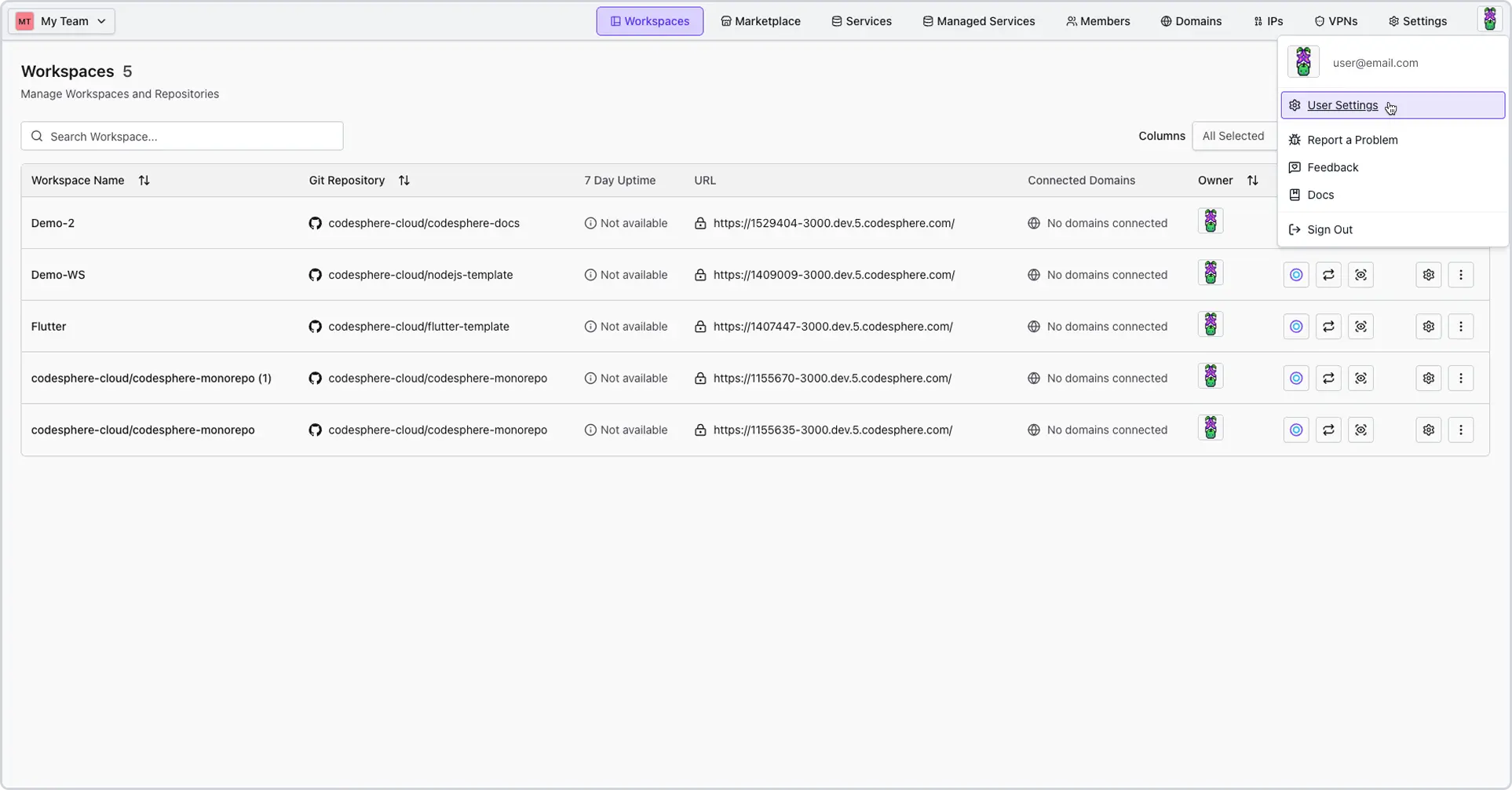
- Locate your Profile Icon in the top right-hand corner of the screen.
- Select User Settings from the dropdown menu.
Updating Your Profile Info
Keeping your contact details current ensures you never miss an important notification.
Changing Name and Email
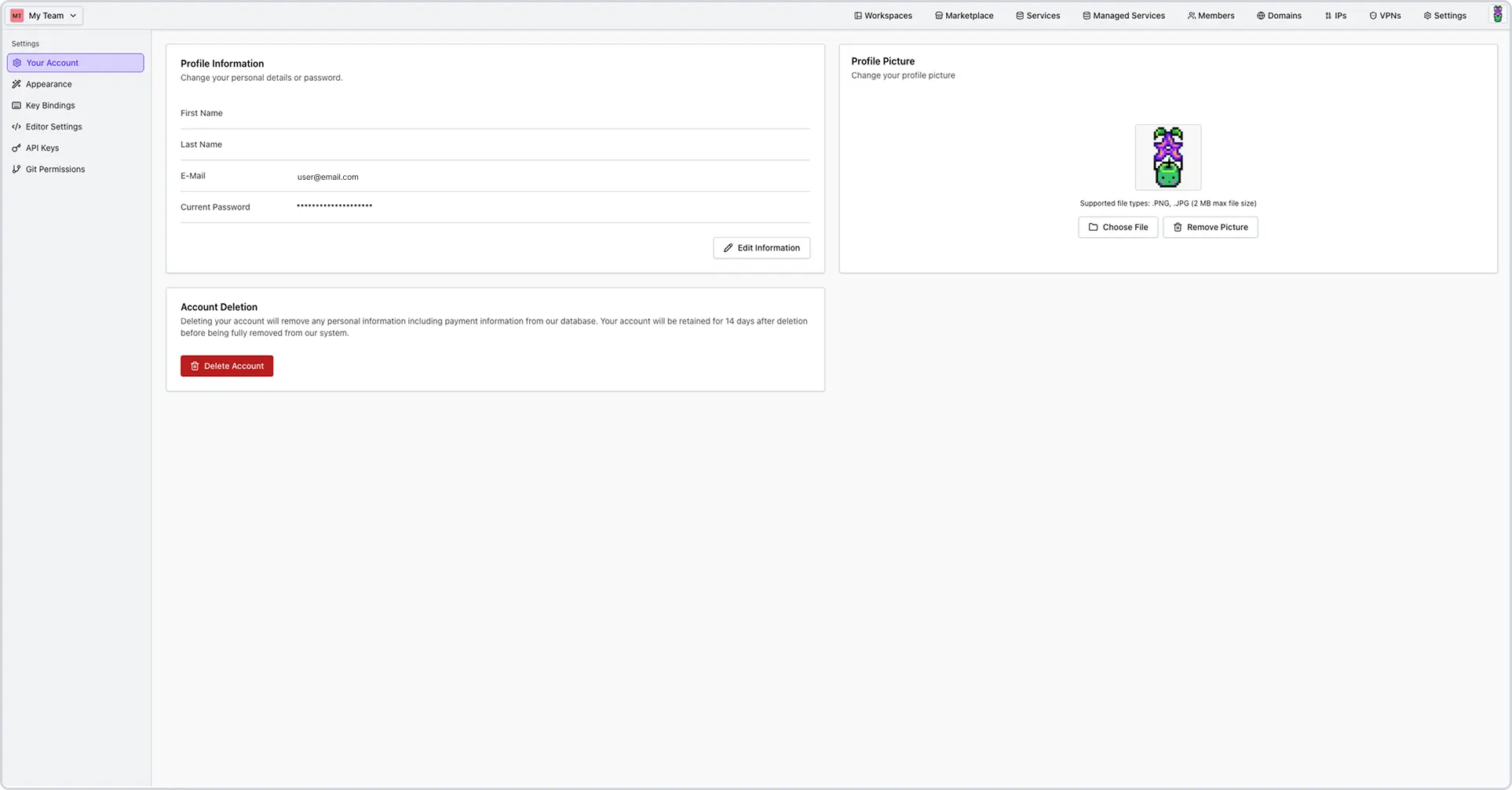
- Under the Your Account tab, locate the "Profile Information" section.
- To go into edit mode, use the “Edit Information” button. Enter your new name or email address in the respective fields.
- Click Save Changes.
Changing Your Password
- Under the Your Account tab, locate the "Profile Information" section.
- To go into edit mode, use the “Edit Information” button.
- Enter your Current Password for verification.
- Type in your New Password and confirm it.
- Click Save.
Customizing Your Avatar
Personalize your profile picture.
- In the Account Settings menu, click on your current avatar circle.
- Select Upload Image to choose a file from your computer.
- Note: Supported file types are .PNG, .JPG (2 MB max file size).
- Click Save.
- To remove it, simply click Remove Picture to return to the default initials.
Deleting Your Account
Deleting your account is permanent after a short grace period. Please read the following requirements carefully before proceeding.
Important: Team Admin Requirement
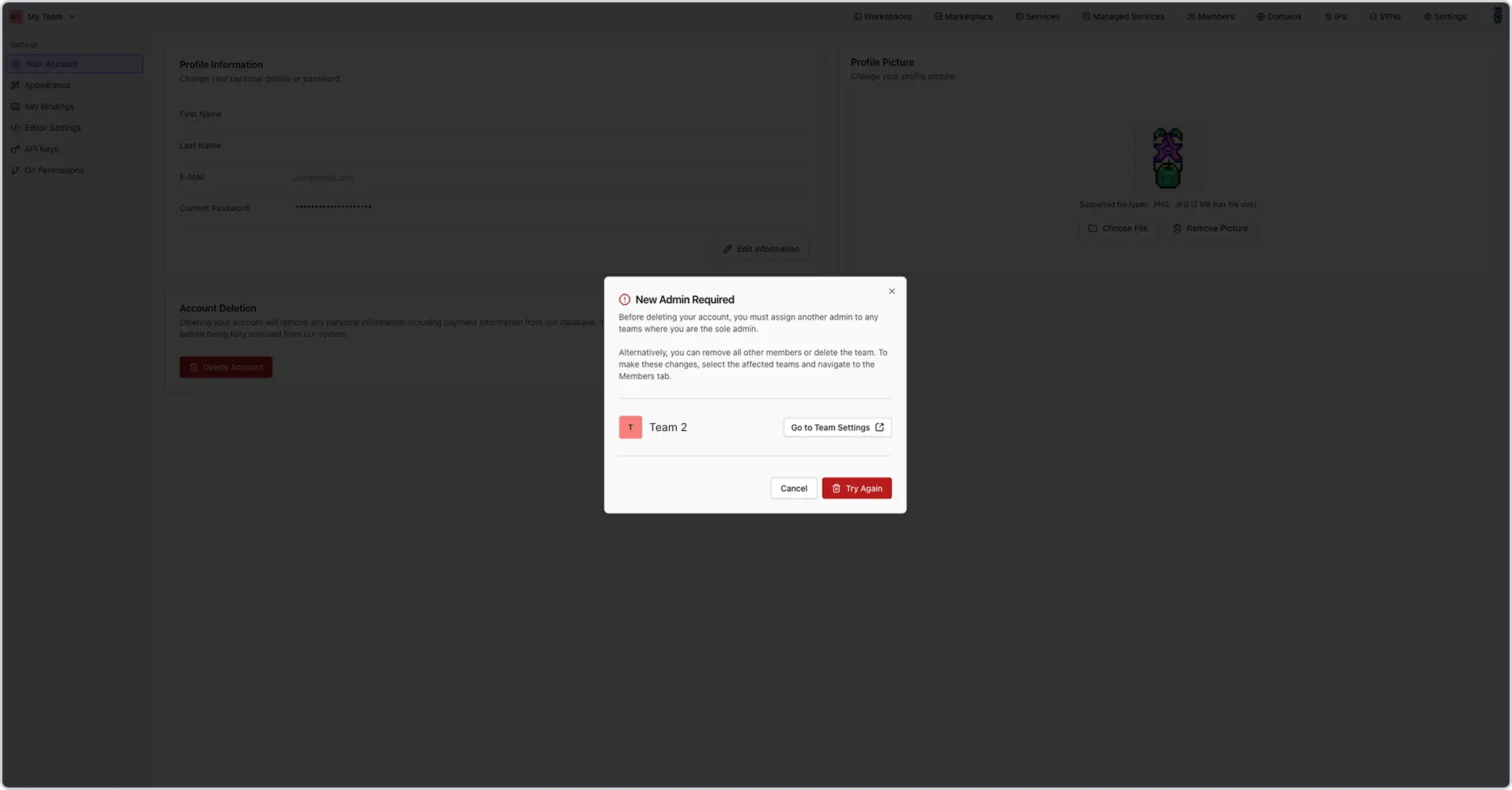
If you are an Admin of any team, you cannot delete your account if you are the sole administrator.
- Action Required: Ensure there is at least one other Admin assigned to your teams.
- Why? Teams must have at least one Admin to function; they cannot consist entirely of "Members."
The Deletion Process
- Navigate to the Your Account tab under the User Settings.
- Click Delete Account.
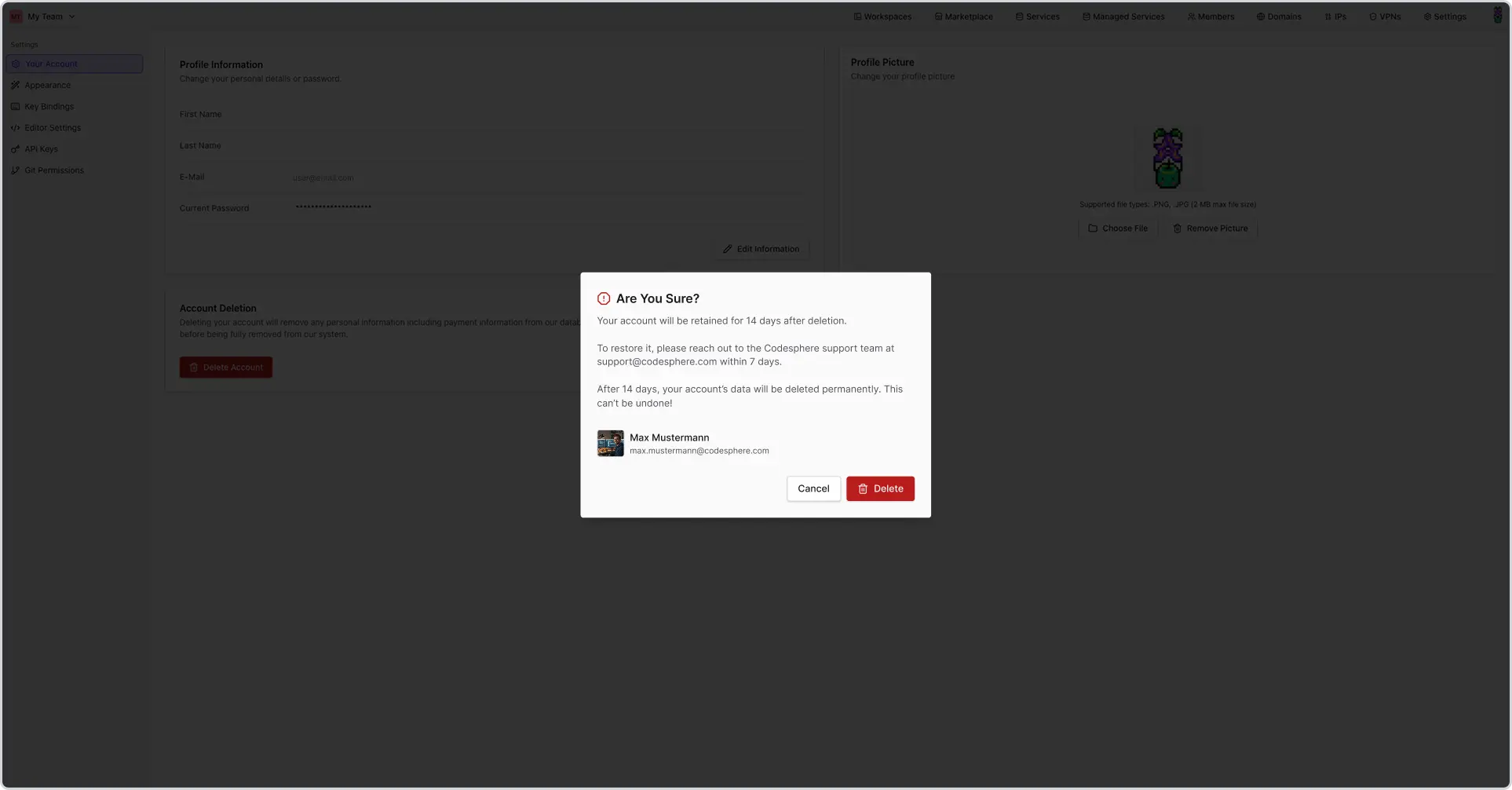
- Confirm the action in the pop-up warning.
Restoration & Permanent Removal
- The 14-Day Window: Your account data is retained for 14 days after you click delete.
- How to Restore: If you change your mind, you must contact
support@codesphere.comwithin 7 days of the deletion request. - Permanent Loss: After 14 days, all data is purged from our systems. This cannot be undone.