Bitbucket Preview Deployment
This guide explains how to automatically create a Preview Codesphere Workspace for every Pull Request (PR) opened in your Bitbucket repository. This allows your team to review changes in a live environment before merging.
Prerequisites
Before setting up the automation, ensure you have the following ready:
- Codesphere Account
- Admin access to the Bitbucket repository you wish to connect
We are currently working on a dedicated API Token system. Once released, you will be able to authenticate using tokens instead of account passwords.
Recommended: Use a Service Account
For production environments, we strongly recommend using a Service Account (a dedicated machine user) rather than a personal developer account. This prevents automation from breaking if a team member leaves.
- Create a Service Account: Sign up for a new Codesphere account using a dedicated email alias, e.g.,
devops+ci@yourdomain.com. - Invite to Team: Log into your main Codesphere account and invite this new service account to your target Team.
- Connect Bitbucket: Log in as the service account and ensure it has the necessary permissions to access your Bitbucket repository.
- Set a Password: Since you cannot use OAuth for automation, ensure this service account has a password set (use the "Forgot Password" flow if you signed up via Bitbucket/Google).
Bitbucket requires a standard email/password login. If your service account was created via OAuth, you must define a password:
- Log out of Codesphere.
- Click Forgot Password on the login screen.
- Follow the email instructions to set a password for the service account.
Setting Up Preview Deployments
- If you haven't done so already, create a Codesphere user with a username & password (OAuth won't work for using Bitbucket Pipelines) - we recommend creating a separate sysadmin user for this.
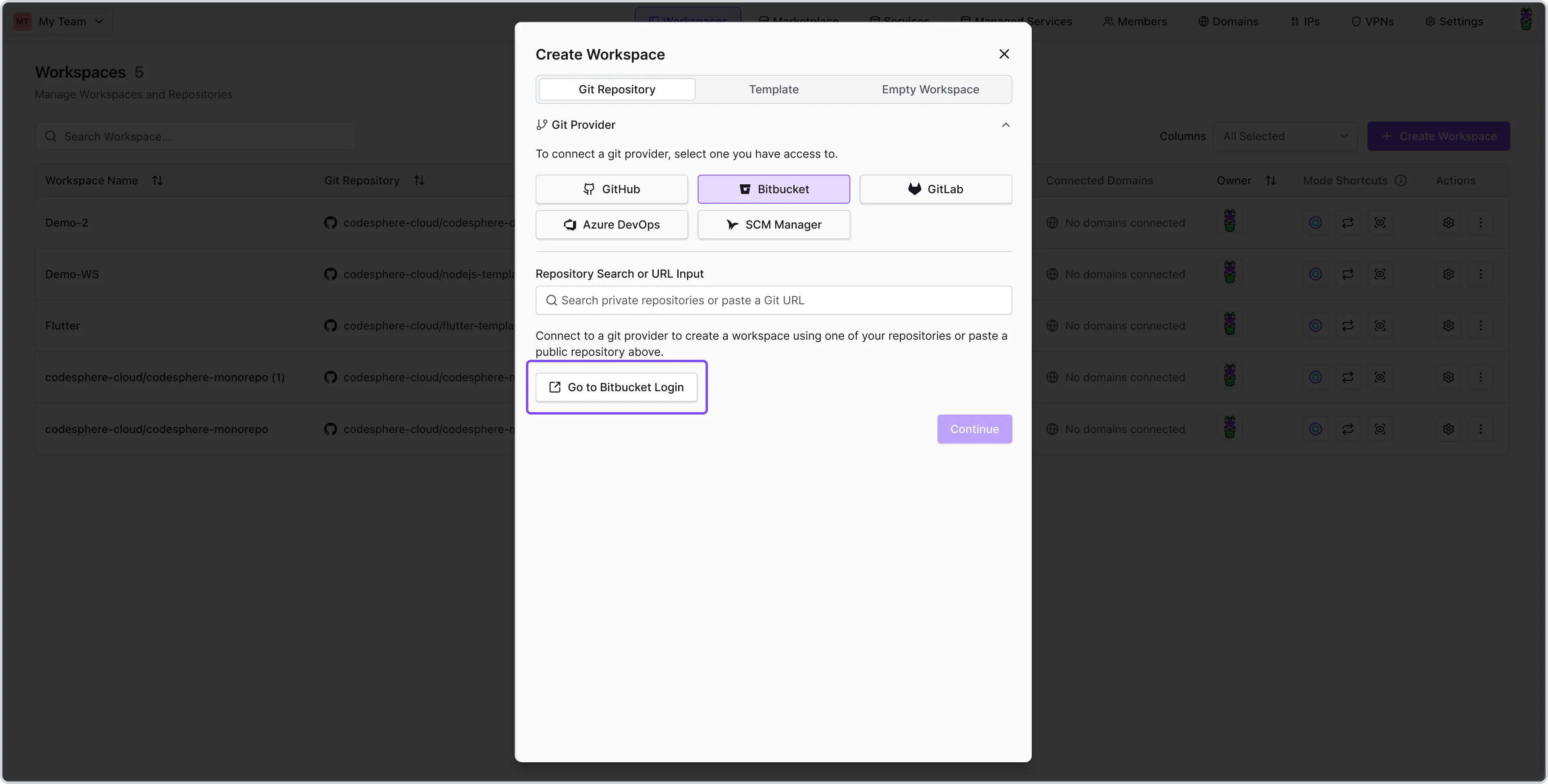
- Log in to your new user and connect it to Bitbucket by clicking the "+ Create Workspace" button
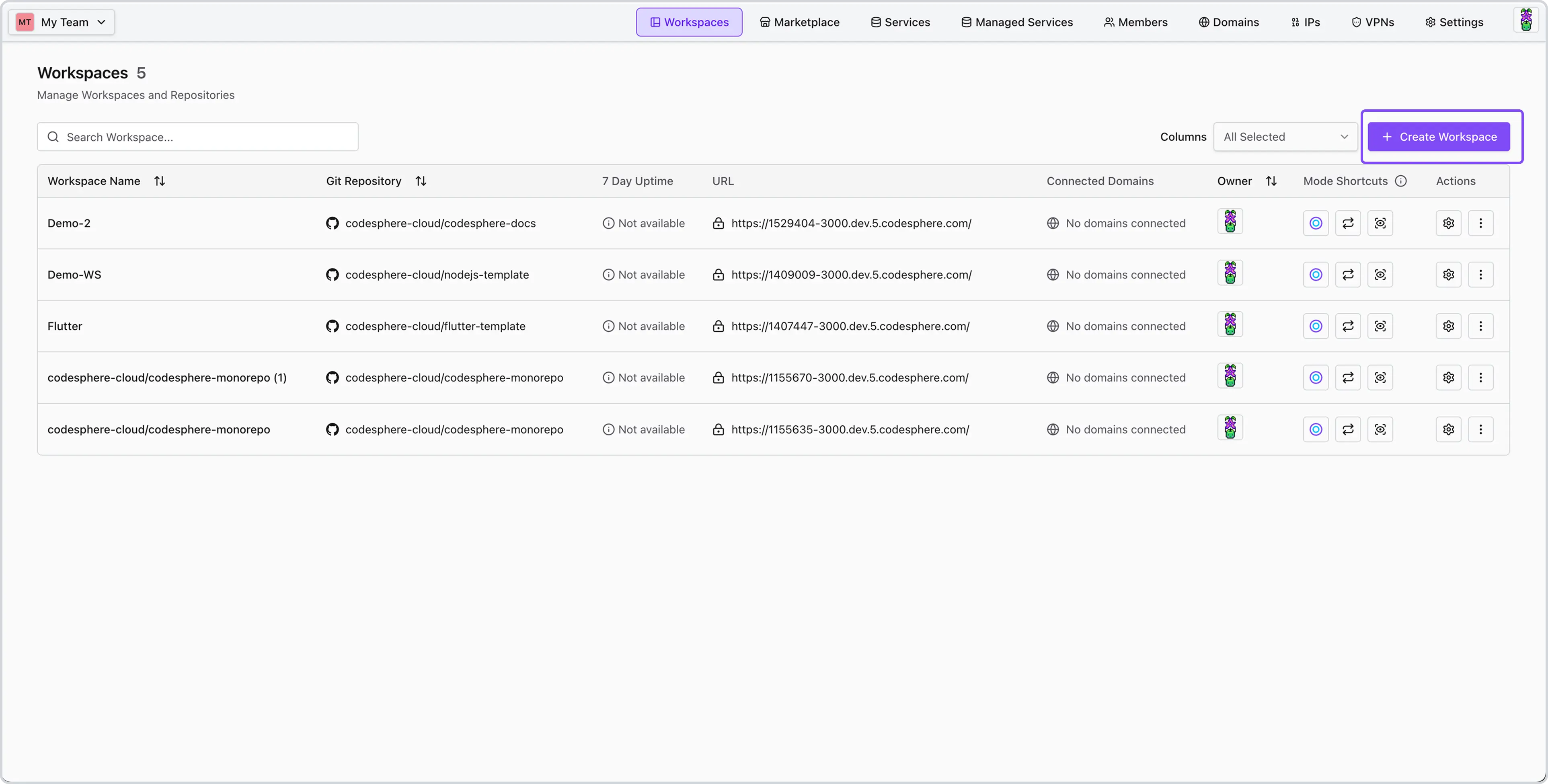
and selecting "Go to Bitbucket Login" in the "Create Workspace" modal.
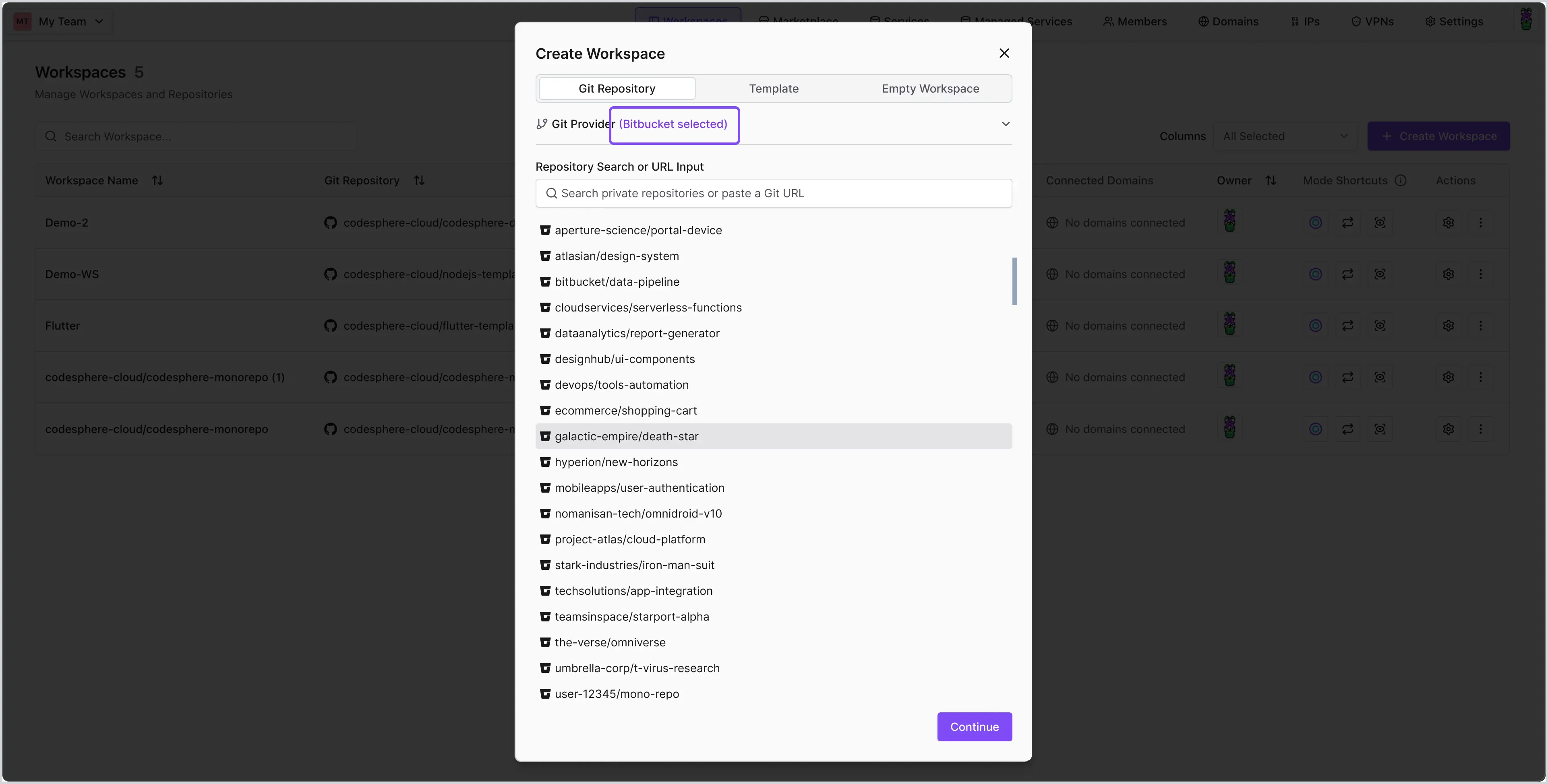
Once signed in, you'll be able to select from your available repositories.
- Ensure the connected Bitbucket account has access to the repository for which you are setting up the preview deployments.
- Make sure the repository has a Codesphere CI pipeline with instructions on how to build & run your app that your Pipeline can then use to create your preview deployment.
- Enable Pipelines for your Bitbucket account (requires 2FA to be set).
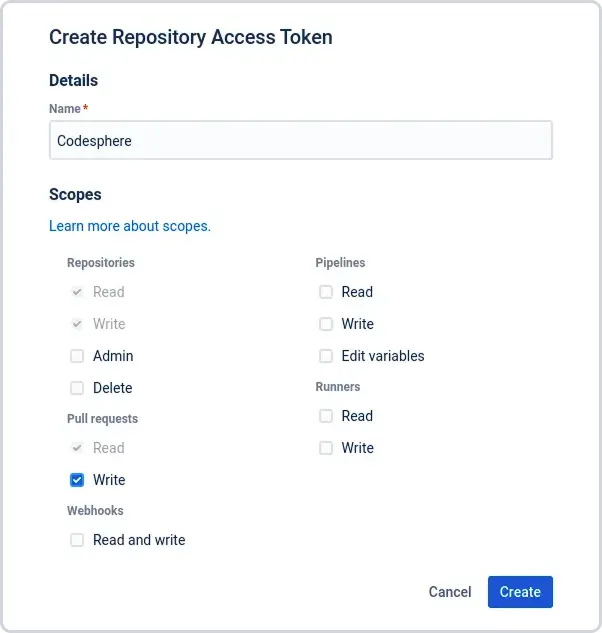
- Create a Bitbucket access token with read & write access to the repo and pull requests.
- Navigate to repository Settings > Pipelines > Repository Variables and add the following secrets to the repositories' environment variables - make sure to set the secured checkbox. You can find more information on which variables can be set below.
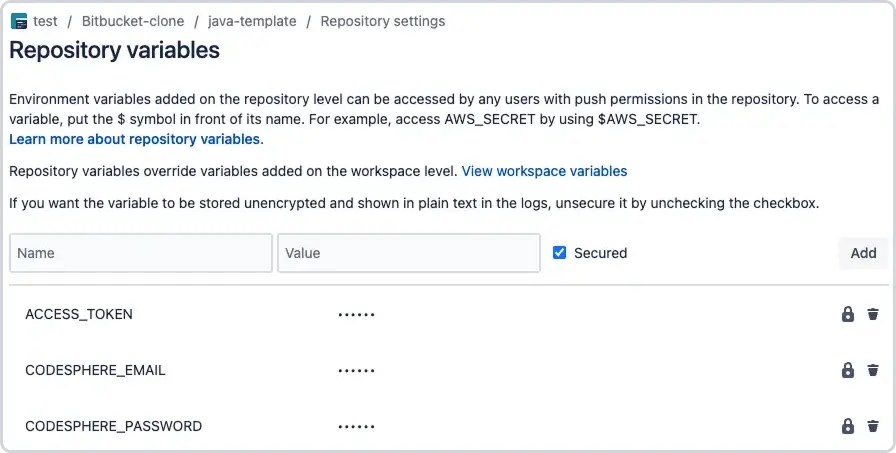
- Create a
bitbucket-pipelines.ymlfile in the root of your repository and add the following code:
image: atlassian/default-image:3

pipelines:
  pull-requests:
    '**':
      - step:
          deployment: Test
          script:
            - pipe: docker://ghcr.io/codesphere-cloud/codesphere-monorepo/integrations/bitbucket-ci:latest
              variables:
                ACCESS_TOKEN: $ACCESS_TOKEN
                EMAIL: $CODESPHERE_EMAIL
                PASSWORD: $CODESPHERE_PASSWORD
                TEAM: My Team
                PLAN: Micro
                DEPLOYMENT_LINK_TYPE: preview  # or 'dev-domain'
                VPN_CONFIG: vpnConfigName
                ENV: |
                    testing=abc
You can configure your Pipeline to have different triggers than just Pull Requests. Find more information on Bitbucket's available Pipeline settings here.
Available Variables
The following are the variables you can use for your Repository variables.
(*) = required variable.
| Variable | Usage |
|---|---|
| ACCESS_TOKEN (*) | The access token you created for the repository. It is recommended to use a secure repository variable. |
| EMAIL (*) | Email of the Codesphere user |
| PASSWORD (*) | Password of the codepshere user. It is recommended to use a secure repository/workspace variable. |
| TEAM (*) | Name of the codesphere team. |
| PLAN | Workspace plan of the workspace that will be created. Available options Micro, Boost, Pro. Default: Boost. |
| ON_DEMAND | Decide whether this preview deployment should be deployed in always on or off when unused deployment mode. Available options true, false |
| ENV | Set environment variables in your workspace. Define them in the same way you would, when using dotenv in a Node.js project. See https://www.npmjs.com/package/dotenv for details. |
| VPN_CONFIG | If you have created a VPN configuration for this team you can reference it here by its config name. This will connect created preview deployments to this VPN connection. |
| DEPLOYMENT_LINK_TYPE | Controls the format of the deployment link posted to the PR comment. preview opens an interactive preview where reviewers can leave frontend comments. dev-domain links directly to the workspace's development domain. Default: dev-domain. |
Additional Information
After following this guide, your Pipeline will run on every pull request and create a Preview Deployment for you to review your changes. It will add a new comment to your Pull Request that includes the domain to your Preview Deployment.
